
Getting Started › Setup › Setup Guide
Before you start you'll need:
- A company email address you can access (a verification code will be sent to it)
- The email addresses of the team members you want to invite, or a way to share a link with them
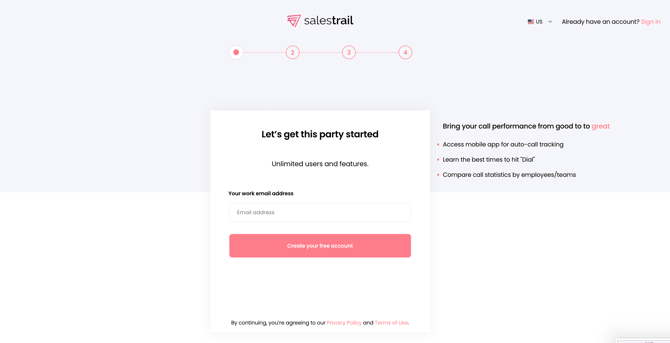
Step 1: Create your account
Go to callanalytics.salestrail.io/signup and sign up with your company email address.
You'll receive a 6-digit verification code to that email. Enter it on the next screen.
Tip: Check your spam folder if the code doesn't arrive within a minute or two.
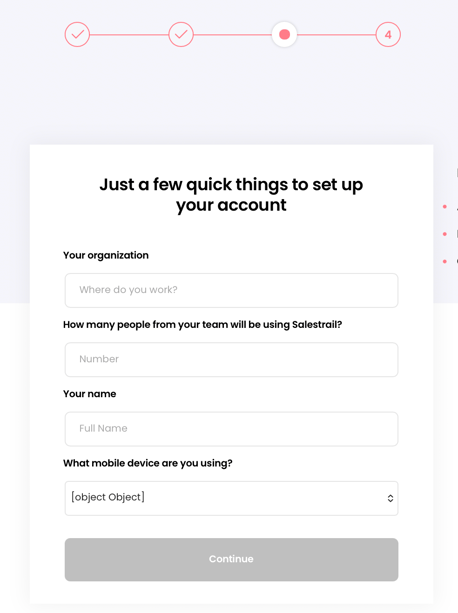
Step 2: Name your organisation
Enter your company name and your full name. Both will be visible to everyone in your organisation on the dashboard, so use your real details — not generic labels like "Office" or "Admin."
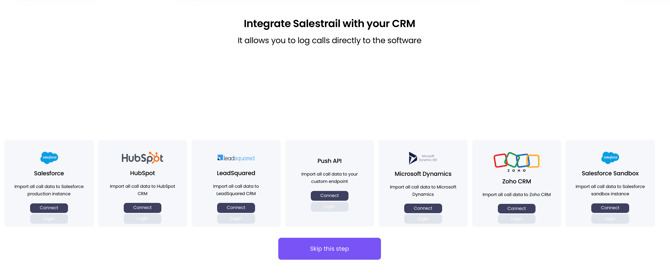
Step 3: Connect your CRM (optional)
If your team uses Salesforce, HubSpot, LeadSquared, Zoho, or Microsoft Dynamics, you can connect it now so that calls are automatically logged to the right contacts.
If you're not ready for this yet, click Skip — you can connect a CRM at any time from the Integrations section of the dashboard.
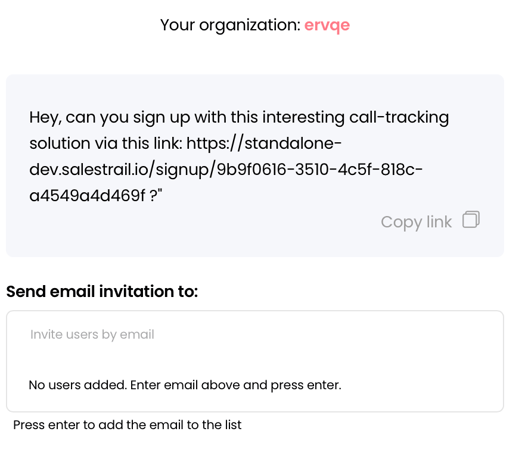
Step 4: Invite your team
Add your team members by email address, or copy your organisation's sign-up link and share it directly.
Important: Do not ask your team to sign up at salestrail.io or the generic sign-up page. If they do, they will create their own separate organisation and their calls will not appear on your dashboard. They must use either the invitation email you send or your organisation's specific sign-up link.
You're set up
Once you've completed these steps, your organisation is created and your team will receive their invitations.
Your next steps depend on what you need:
| What you need to do | Where to go |
|---|---|
| Install the app on Android and start tracking calls | Mobile App > Android > Installing the App |
| Install the app on iPhone | Mobile App > iOS > Installing the App |
| Set up call recording | Call Recording > Setup > How Call Recording Works |
| Connect a CRM | CRM & Integrations > CRM Setup |
Already been invited by a colleague?
If someone else has already created your organisation and sent you an invitation, you don't need to follow the steps above.
Invited by email: click the Join button in the invitation email and sign up using the exact email address you were invited with. Check your spam folder if you don't see it.
Invited by link: click the link your colleague shared and create your account. Make sure you enter your real full name — it will be visible to your team.
If you don't have the email but know the address you were invited with, go to callanalytics.salestrail.io/signup and sign up with that same address — you'll be added to the right organisation automatically.
Important: If you sign up with a different email address than the one you were invited with, you will create a separate organisation instead of joining your team's. If this happens, see Common Setup Mistakes to fix it.