
The Salestrail Recorder APK is a separate app that works alongside the main Salestrail app to record your calls. Once set up, it runs silently in the background — all recordings and call logs appear in the main Salestrail app. The Recorder APK's only job is to enable recording to take place.
Use this guide if:
-
Your device uses a Google Dialer
-
Your device does not have a built-in call recorder
-
You want to record WhatsApp or WhatsApp Business calls
-
You are unsure which setup applies to you — this path works for all Android devices
A step-by-step video guide is available below:
Before you start
Make sure the main Salestrail app is already installed and working. If not, see Installing the Salestrail App on Android first.
Step 1: Download the Salestrail Recorder APK
-
Open the Salestrail app and go to Settings > Recording Settings
-
Enable Call Recordings
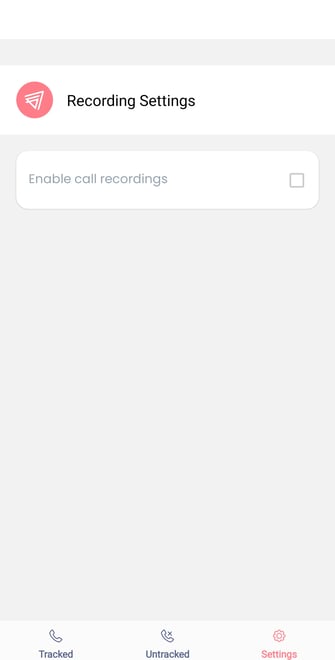
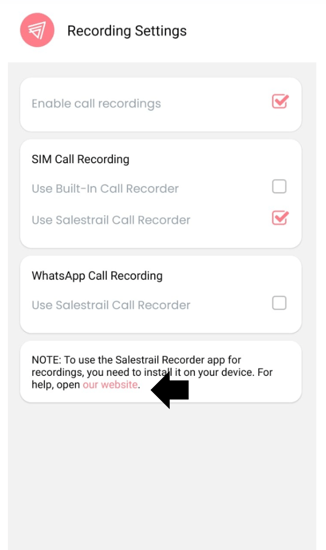
4. This will redirect you to our webpage where you get the link to download the Salestrail APK app.
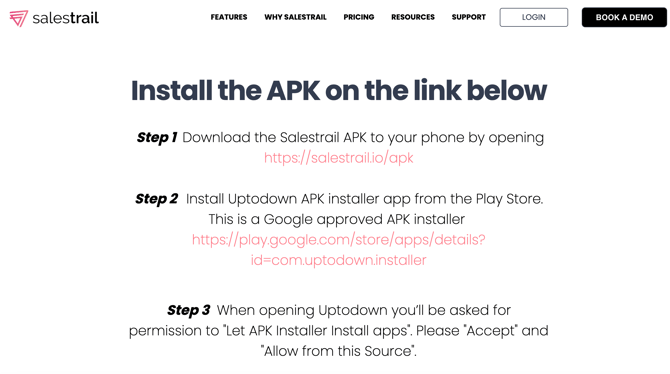
Step 2: Install the Uptodown APK installer
Install Uptodown from the Play Store — this is a Google-approved APK installer:
play.google.com/store/apps/details?id=com.uptodown.installer
When you open Uptodown for the first time, you will be asked for permission to Let APK Installer install apps. Tap Accept and then Allow from this Source.

Step 3: Install the Salestrail Recorder APK Using Uptodown
-
In the Uptodown app, tap Install Apps
-
Uptodown will locate the Salestrail Recorder APK file on your phone — tap it
-
Tap Install when prompted
Play Protect warning: If you see a warning saying the app is harmful or blocked, do not tap OK. Tap More details, then Install anyway. This warning appears for all apps installed outside the Play Store — it does not mean Salestrail is unsafe.
You can uninstall Uptodown once installation is complete.
Once you install Salestrail apk recorder, you will have two apps on your device: the Salestrail app and the Salestrail Recorder app. No activity happens on the Salestrail recorder once it is set up. All activity and logs will happen on the main app. The APK only purpose is to enable recording to take place.

Step 4: Enable accessibility
The Recorder APK needs accessibility access to detect when a call starts:
-
Open the Salestrail Recorder APK
-
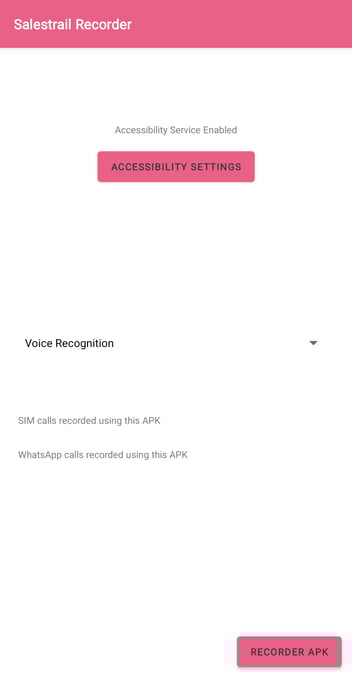
On the front page you will see Accessibility Service Disabled — tap Accessibility Settings
-
Tap Installed Apps or Downloaded Apps
-
Find Salestrail Recorder and toggle it on
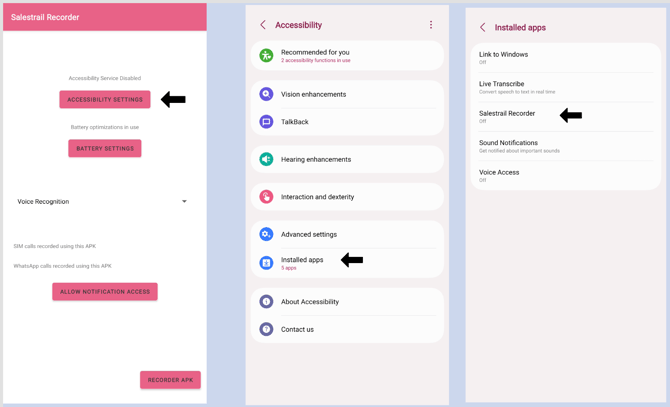
On Android 13, 14, and 15 — Restricted Settings: When you try to enable accessibility, your phone may show a message about restricted settings and the toggle will appear greyed out. If this happens:
-
Tap on Salestrail Recorder anyway even though it appears greyed out or press OK if you are prompted
-
Go to Phone Settings > Apps > Salestrail Recorder
-
Tap the three dots in the top right corner — or on some devices, scroll to the bottom of the app info page
-
Tap Allow Restricted Settings
-
Return to the Recorder APK and enable accessibility
Video guide for removing restricted settings:
Step 6: Choose a recording source
In the Salestrail Recorder APK, select a recording source. Start with Voice Recognition — this works best on most devices. If you find that only your voice is being captured and not the other person's, try switching to a different source in the app settings.
Step 7: Disable battery optimization
The Recorder APK is a separate app and needs its own battery settings adjusted. Both the main Salestrail app and the Recorder APK must be set to Unrestricted — if either is being optimized, you will get inconsistent recording:
-
Go to Phone Settings > Apps > Salestrail Recorder > Battery
-
Set to Unrestricted
-
Turn off Remove Permissions if App is Unused
Step 8: Make a test call
Make a short call and wait for it to finish. Then check:
-
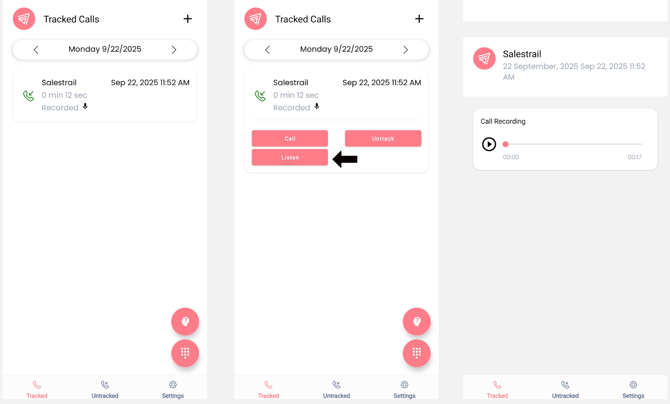
The call appears in the Tracked Calls tab in the Salestrail app
-
A recording icon is shown next to the call
-
The recording appears in the Recordings tab in the dashboard
Below is a picture of recorded calls. Click on the call for more options.
TIP: To ensure that calls are recorded without fail, both Salestrail app and Salestrail recorder app should be running in the background. Remove all battery restrictions and optimizations on your device to keep both apps from being put to sleep.
Important:
Please keep in mind that it is your responsibility to adhere to your local laws and regulations pertaining to call recording. Additionally, in specific jurisdictions, obtaining explicit consent from all parties involved in the conversation may be a legal requirement.