
System Overview
Getting Started › Overview › System Overview
Salestrail is made up of three components that work together. Understanding what each one does - and how they connect - will help you set up correctly and know where to look when something isn't working.
The three components at a glance
| Component | What it is | Who needs it |
|---|---|---|
| Mobile App | Tracks calls on your phone and sends data to the dashboard | Every user whose calls are tracked |
| Call Recording App | Records call audio on Android. Required for WhatsApp recording and devices without a native recorder | Android users who need call recording |
| Dashboard | Central hub for call data, analytics, team management, and CRM integration | Everyone - reps, managers, and admins |
.webp?width=670&height=239&name=hero-banner-final-3%20(1).webp)
⚠️ Important: Each component has its own setup. If you skip one, features that depend on it will not work. The most common mistake is installing only the Mobile App and wondering why recordings aren't appearing.
Component 1: The Salestrail Mobile App
The mobile app is the core of Salestrail. It runs in the background on your phone and automatically detects when a call starts or ends, then sends that data to the dashboard.
What it does
- Tracks SIM/GSM calls on both Android and iPhone
- Tracks WhatsApp and WhatsApp Business calls (Android only)
- Allows you to choose what is tracked - Which SIM, WhatsApp / WhatsApp Business, Office hours
- Shows your tracked calls in a list within the app, allows you to mark calls as private
- Connects to your CRM contacts so you can search and call directly from the app
How it behaves on Android vs iPhone
| Feature | Android | iPhone |
|---|---|---|
| Outbound call tracking | Automatic - calls from native dialer are tracked | Must call from within the Salestrail app |
| Inbound call tracking | Automatic - All incoming calls are tracked | Not supported |
| WhatsApp call tracking | Supported for both incoming and outgoing calls | Not supported |
| Call recording for SIM / GSM calls | Supported (via built-in recorder or Salestrail Recording App) | Not supported |
| Call recording for WhatsApp and WhatsApp Business | Supported via the Salestrail Call recorder App (note you need to have two apps on your Android device) | Not Supported |
⚠️ Important: iPhone users must open the Salestrail app and call from inside it for any call to be tracked. Calls made from the native Phone app, recent calls list, or contacts will not be logged.
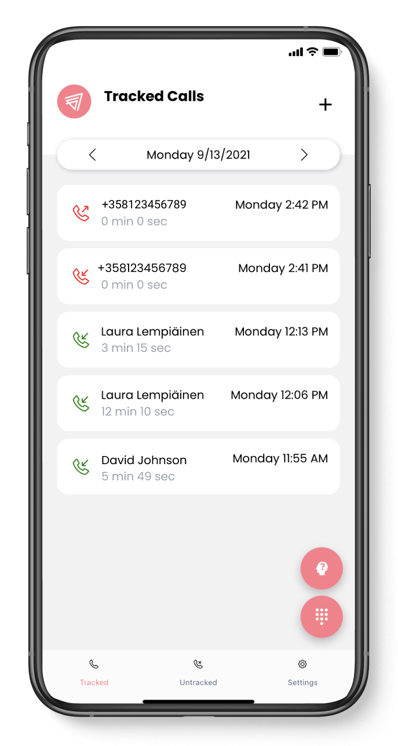
The three tabs and the dialer
-
Tracked calls tab - every logged call appears here. Tap a call to: call back, listen to a recording, add CRM notes, or untrack it.
-
Untracked calls tab - calls marked as private and calls made outside your configured office hours. Visible only to you and not on the dashboard or in your CRM.
-
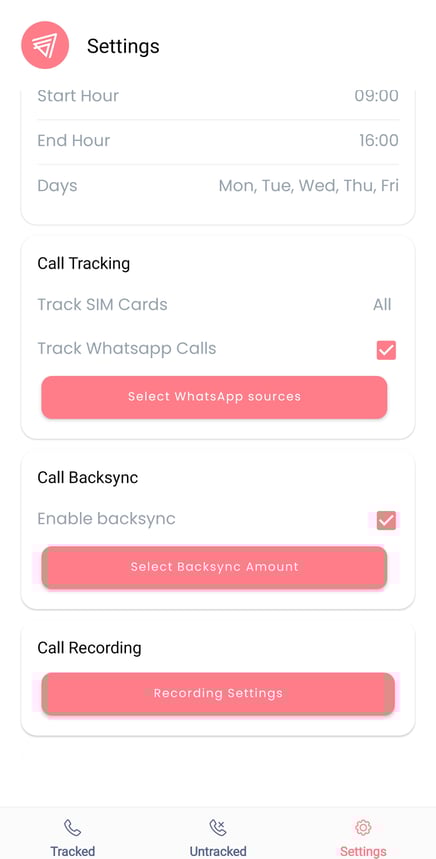
Settings tab - configure what the app tracks:
- Work days and office hours
- SIM card selection (dual-SIM phones)
- WhatsApp tracking
- Call recording settings
The dialer - tap the icon in the bottom-right corner. If a CRM is connected, a CRM tab appears alongside Contacts, letting you search Salesforce, HubSpot, or LeadSquared contacts and call them directly - the call is automatically logged to that contact.
Component 2: The Salestrail Recording App (Android only)
The Salestrail Recorder is a separate app installed in addition to the main Salestrail app. It handles call audio recording for Android devices that can't use the phone's built-in recorder, and is required for all WhatsApp call recording.
💡 Note: The Recording App is Android only. Call recording is not supported on iPhone due to Apple platform restrictions.
Why is it a separate app?
Google restricted call recording in Play Store apps from Android 9 onwards. The Salestrail Recorder operates as an APK (installed outside the Play Store), which allows it to capture call audio without those restrictions.
When do you need it?
| Situation | Need the Recording App? |
|---|---|
| Android device that does not come with a built-in call recorder | Yes- always required |
| Android device that comes with a built in call recorder and uses the native dialer (in India, Indonesia, Russia Android usually have built in recorders) | Optional - can use phone's built-in recorder |
| Android with Google Dialer (any region) | Yes- built-in recorder won't work as the call recorder is not accessible anywhere else that on the phone |
| Want to record WhatsApp calls | Yes - always required |
| iPhone user | No -recording not supported on iOS |
💡 Tip: To check if you have a Google Dialer: open Salestrail app → Settings → Recording Settings → enable recording. If you see "Your phone might have a Google Dialer," use the Recording App.
What it does once installed
Once installed and linked to the main app, the Recording App runs silently in the background. You continue using your phone normally- it activates when a call starts and captures audio automatically.
- All recordings appear in the Recordings tab in the dashboard
- A link to each recording is pushed to your CRM (if integrated)
- Both apps must have battery optimization disabled
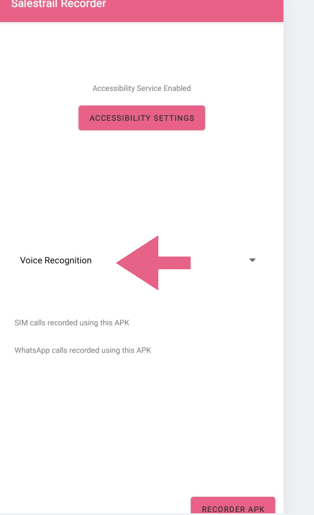
Key permissions required
- Accessibility- detects when a call starts
- Notification access -required for WhatsApp call recording
- Battery unrestricted - must not be optimized or it will stop during calls
⚠️ Important: Both the Salestrail app and the Recording App must be exempt from battery optimization. If only one is set correctly, you will get inconsistent recording - some calls captured, some missed.
Component 3: The Call Analytics Dashboard
The dashboard is the web-based control centre. Every user can log in to see their own call data. Owners and managers have access to team-wide data and administrative controls.
Sign up: callanalytics.salestrail.io/signup
Log in: callanalytics.salestrail.io/signin
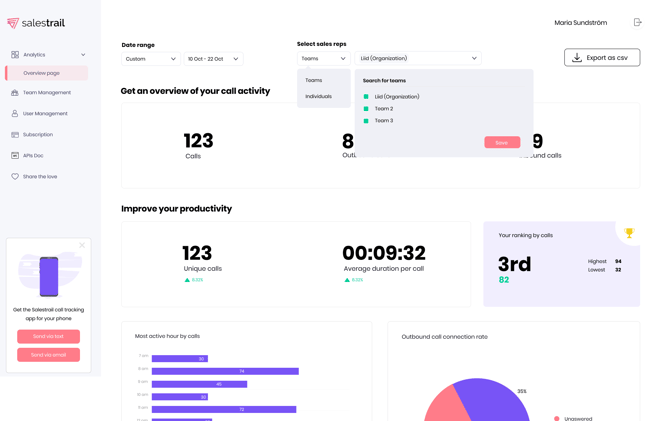
The sidebar - what each section does
| Section | What it does |
|---|---|
| Analytics | Overview of call performance. Filter by user, date, and call type. Create custom views. |
| Calls | Full list of every tracked call across your team |
| Recordings | All recorded calls -click to listen or download |
| Team Management | Create teams and assign Team Admins |
| User Management | Add/remove users. See setup status for each user at a glance. |
| Subscription | Purchase and manage licenses |
| Integrations | Connect CRM and monitor the Integration Log |
| API Docs | Pull API documentation for custom integrations |
| Settings | Org-level settings - manual call logging, untracking, recording permissions |
User Management - the most useful admin tool
Four status columns show whether each user is set up correctly:
| Column | What it shows | Red means... |
|---|---|---|
| App installed | Whether the app is installed | User hasn't installed the app |
| Permissions | Whether all permissions are granted | Missing permissions - calls may not track |
| Integration | Whether CRM login is connected | CRM calls won't log for this user |
| Recordings | Whether any call has been recorded | No recordings captured yet |
💡 Note: A green dot in Recordings means at least one recording has been captured — it does not confirm recording is currently working. Always check after a test call.
How the three components connect
Here is the full data flow from a call on a user's phone to a record in your CRM:
- A call starts on the user's phone
- The Salestrail Mobile App detects the call and logs the metadata: who called, when, duration, direction, call type
- If the Recording App is installed, it captures the call audio simultaneously
- When the call ends, both the call log and recording are sent to the Dashboard
- If a CRM is connected, the call is matched to a contact by phone number and logged as an activity
💡 Tip: If any step breaks, a missing permission, battery optimization on, or disconnected CRM - the call may be logged in some places but not others. The Integration Log shows exactly where the chain broke.
Who does what - roles
| Role | Can see | Can manage |
|---|---|---|
| Owner | All call data across the organization | Users, teams, billing, integrations, all settings |
| Manager | Own data only (unless also a Team Admin) | Users and teams - not billing |
| User | Own data only | Nothing organizational |
| Team Admin | Call data for their assigned team(s) | Assigned by Owner or Manager |
💡 Note: Managers don't automatically see team data. To give a manager visibility: create a team, add members, assign the manager as Team Admin.