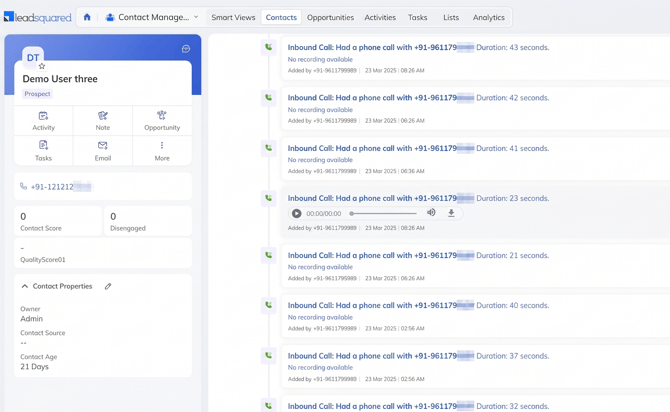
Overview
Salestrail integrates with LeadSquared via the Universal Telephony Connector (UTC) which allows external systems to push call data into LeadSquared.
We use the Async API for call logging to ensure:
Better reliability (non-blocking requests)
Built-in retry mechanism via queue
Faster and scalable processing for high call volumes
How Async API Works
When a call is made:
1. Salestrail sends call data to LeadSquared via Async API
2. LeadSquared **queues the request** instead of processing instantly
3. Salestrail periodically checks status
4. LeadSquared responds with:
* `QUEUED`
* `SUCCESS`
* `FAILED`
5. Call is logged once processed
This ensures no data loss even during high traffic or temporary failures.
Prerequisites
Before starting, make sure you have:
Access to your LeadSquared account
https://login.leadsquared.com/
Admin permissions in LeadSquared
Access to Apps Marketplace
Step-by-Step Setup
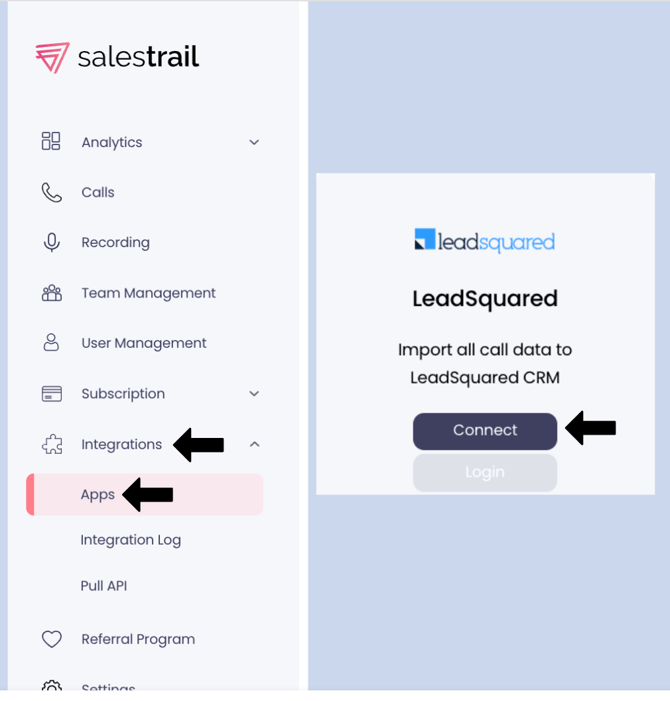
Step 1: Open Integrations in Salestrail dashboard.
Go to: Salestrail → Integrations → Apps
Click Connect on LeadSquared
Step 2: Login to LeadSquared
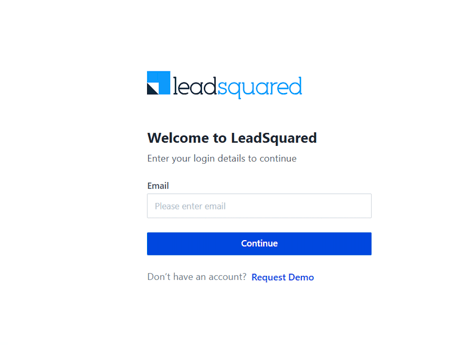
Enter your credentials and authorize access
Screenshot:
LeadSquared login screen
Step 3: Open Apps Marketplace in LeadSquared
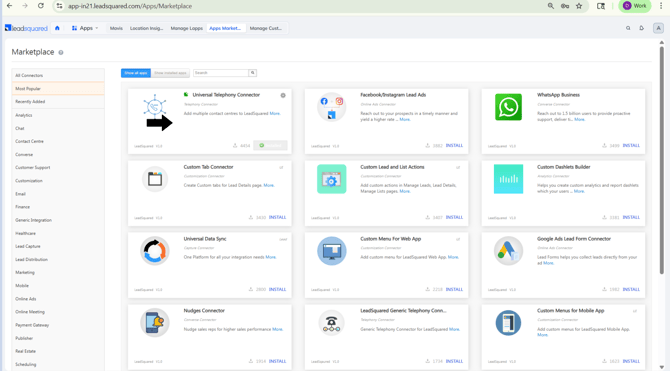
Go to: Apps → Marketplace
Search for “Universal Telephony Connector”
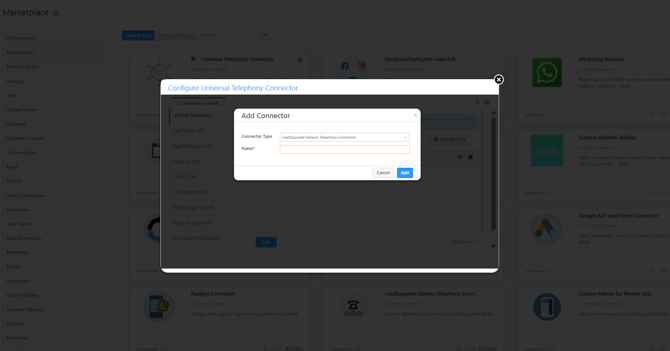
Step 4: Configure Universal Telephony Connector (UTC) (Critical Step)
Install Universal Telephony Connector**
Click **Settings (⚙️) → Configure**
Add a connector
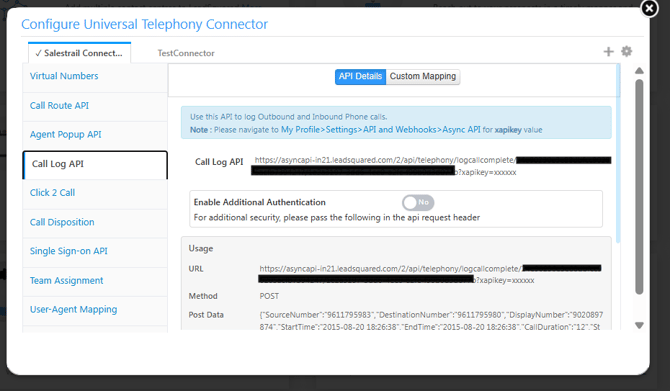
Navigate to **Call Log API**
Copy the Async API endpoint (Webhook URL)
This is the endpoint Salestrail will use to send call data
Why this step is required
LeadSquared does **not accept direct call logs by default**.
UTC acts as a bridge to allow external systems like Salestrail to log calls.
Without UTC:
* Calls will NOT be logged
* Integration will appear connected but won’t work
Step 5: Get API Key (apikey)
How to find:
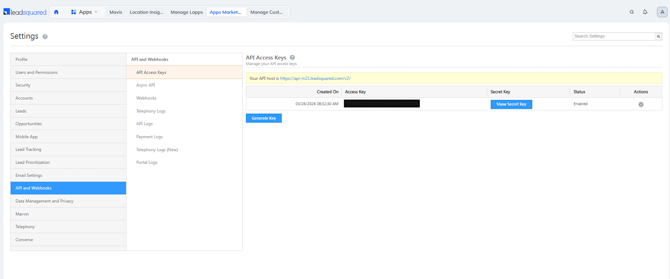
1. Go to: Leadsquared Dashboard
2. Click Profile (top right)
3. Navigate to:
My Profile → Settings → API & Webhooks
4. Copy the **Access Key (apikey)
Step 6: Configure Salestrail with Async API
Use the **Async API endpoint from UTC
Ensure the API key is included
Example:
```
https://asyncapi-in21.leadsquared.com/v2/api/telephony/logcall?accessKey=YOUR_API_KEY
```
Step 7: Verify Call Logging
Make a test call via Salestrail
Go to LeadSquared:
→ Open Lead/Contact
→ Check Activity / Call Logs