
This article covers how to download, install, and log in to the Salestrail app on an iPhone. iOS works differently from Android — read this fully before you start so you know what to expect.
Before you start
Make sure someone has already created your organisation on the Call Analytics Dashboard and that you have been invited. If not, see Set Up Your Organisation on the Call Analytics Dashboard.
Important — know what iOS can and can't do before you set up:
| Feature | iPhone |
|---|---|
| Outbound call tracking | Supported — but only for calls made from within the Salestrail app |
| Inbound call tracking | Not supported — must be logged manually |
| WhatsApp call tracking | Not supported |
| Call recording | Not supported |
If your team needs automatic call tracking, WhatsApp tracking, or call recording, those features require Android. See Device Compatibility Checker > iOS vs Android Comparison for a full breakdown.
Step 1: Download the app
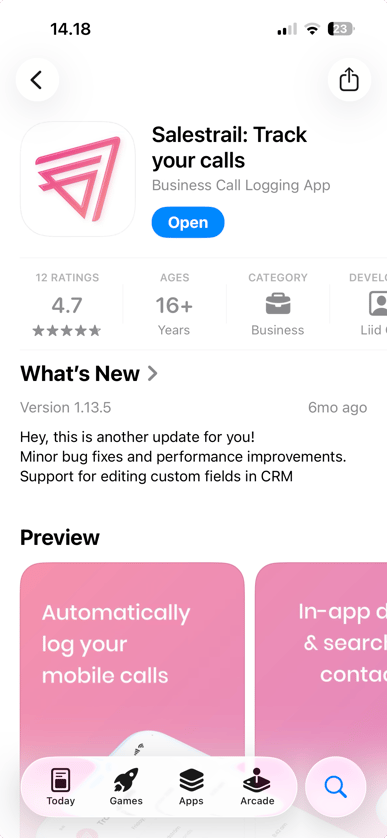
Open the App Store and search for Salestrail: Track your calls. Download and install it.
Step 2: Log in
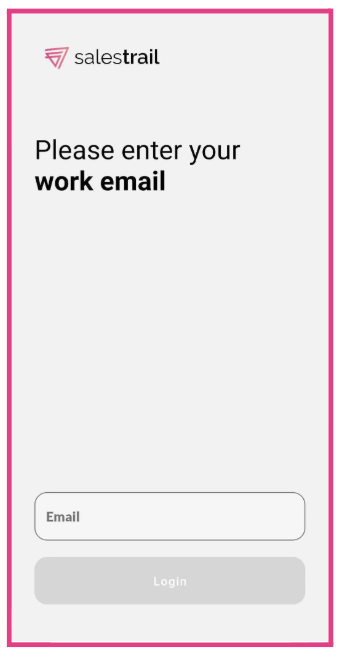
Open the app and log in using the same email address you used when signing up on the Call Analytics Dashboard. Enter the verification code sent to your email.
Step 3: Grant permissions
Grant all permissions the app requests during onboarding. On iOS, Salestrail needs access to your Contacts to match phone numbers to names.
Step 4: Enable background app refresh and mobile data
Go to your iPhone Settings > Salestrail and make sure both Background App Refresh and Mobile Data are turned on. Without these, the app may not function reliably..png?width=441&height=956&name=File%20(1).png)
Making calls on iPhone
On iPhone, calls must be made from within the Salestrail app to be tracked. Here's how:
- Open the Salestrail app
- Tap the dialer icon in the bottom-right corner
- Search for a contact or dial a number
- Make your call — it will be logged automatically when the call ends
Calls made from the native Phone app, your recent calls list, or any other app will not be tracked.
.png?width=425&height=922&name=File%20(2).png)
Logging incoming calls manually
Incoming calls cannot be tracked automatically on iPhone. After an incoming call ends, you can log it manually:
- Open the Salestrail app
- Go to the Tracked Calls tab
- Tap Add
- Fill in the call details and tap Save
The call will appear in your dashboard immediately.
You're ready
Make a test call from within the app and check that it appears in the Tracked Calls tab and in the Calls section of the dashboard. If it doesn't appear, check that you made the call from inside the Salestrail app and that all permissions are granted.