
Before you start:
Make sure someone has already created your organisation on the Call Analytics Dashboard and that you have been invited — either by email or via your organisation's sign-up link. If you haven't done this yet, see "Set Up Your Organisation on the Call Analytics Dashboard."
Step 1: Download the app
Open the Google Play Store and search for Salestrail - Sync Calls & Recs. Download and install it.
Step 2: Log in
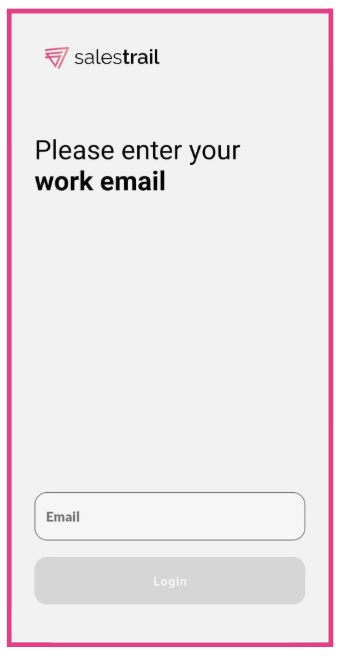
Open the app and log in using the same email address you used when signing up on the Call Analytics Dashboard or if you have not signed up, the email you have received the invitation email to. You'll receive a verification code to that email — enter it to continue.
Important: You must use the same email address as your dashboard account. If you use a different address, you will create a new separate account that isn't connected to your organisation.
Step 3: Grant permissions
During onboarding, the app will ask for several permissions. Grant all of them — without these, the app cannot track your calls.
The permissions Salestrail needs are:
- Phone — detects when calls start and end
- Call logs — records call details including date, time, and duration
- Contacts — matches phone numbers to names from your contact list
Step 4: Disable battery optimization
Android's battery optimization closes background apps to save power. Because Salestrail needs to run in the background to detect calls, you need to exempt it from this.
When you see the notification in the app that says "Turn off battery optimization for Salestrail," tap it and follow the prompt.
You can also do this manually: go to Phone Settings > Apps > Salestrail > Battery and set it to Unrestricted.
While you're there, make sure Remove permissions if app is unused is turned off.
Important: This is the single most common reason calls don't get logged. If you skip this step, you will likely see missing or inconsistent call tracking.
Step 5: Check your tracking settings
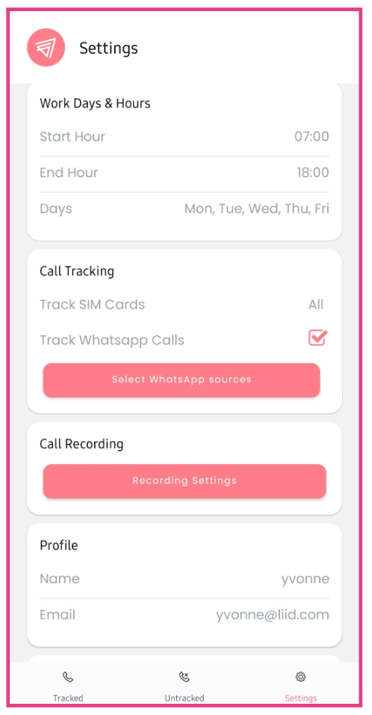
Open the Salestrail app and go to the Settings tab. Check the following:
- SIM card selection — if your phone has two SIMs, make sure the right one is selected for tracking
- Work days and office hours — if you only want calls tracked during working hours, configure this here. If left blank, all calls will be tracked regardless of time.
- WhatsApp call tracking — if you want to track WhatsApp calls, enable this here
You're ready
Make a test call and check that it appears in the Tracked Calls tab in the app and in the Calls section of the dashboard. If it doesn't appear, see Calls Not Being Logged.
If you want to record calls, your next step is Call Recording > Setup > How Call Recording Works.