
The Salestrail Recorder APK is a separate app that works alongside the main Salestrail app and you should now have two apps on your device: the Salestrail app and the Salestrail Recorder app. No activity happens on the Salestrail recorder once it is set up. All activity and logs will happen on the main app. The APK only purpose is to enable recording to take place.

Step 1: Give permissions when prompted
The Recorder APK needs access to your phone, contacts and call log to detect when a call starts as well as access to your microphone to be able to record. Without these permissions, the app cannot activate when a call begins and no recordings will be captured.
- Open the Salestrail Recorder APK
- When the app opens for the first time, it will ask for several permissions — tap Allow on each one when prompted
Step 2: Enable accessibility
The Recorder APK needs accessibility access to detect when a call starts. Without it, the app cannot activate when a call begins and no recordings will be captured.
- Open the Salestrail Recorder APK
- On the front page you will see Accessibility Service Disabled — tap Accessibility Settings
- Tap Installed Apps or Downloaded Apps
- Find Salestrail Recorder and toggle it on
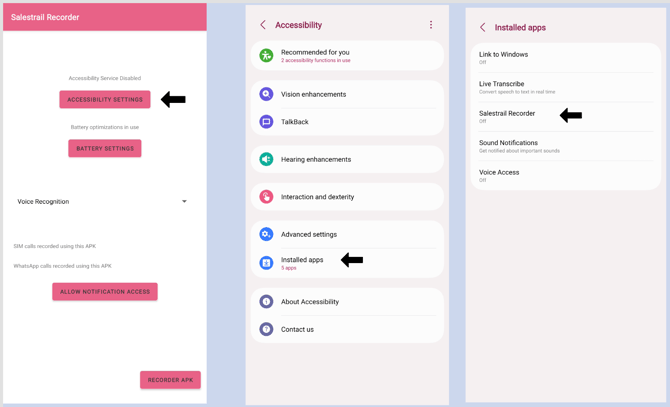
On Android 13, 14, and 15 — Restricted Settings: When you try to enable accessibility, the toggle may appear greyed out and your phone may show a message about restricted settings. If this happens:
- Tap on Salestrail Recorder anyway even though it appears greyed out, or tap OK if prompted
- Go to Phone Settings > Apps > Salestrail Recorder
- Tap the three dots in the top right corner — or on some devices, scroll to the bottom of the app info page
- Tap Allow Restricted Settings
- Return to the Recorder APK and enable accessibility
Step 3: Choose a recording source
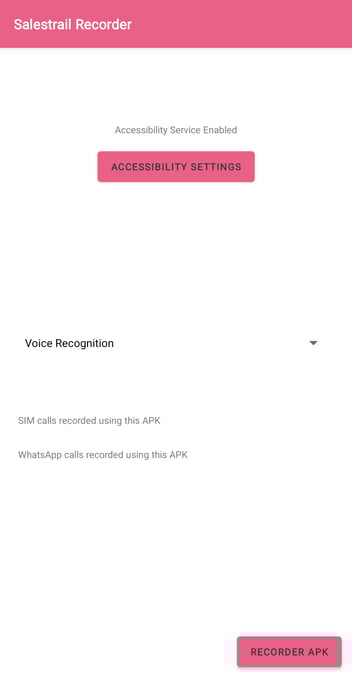
Open the Salestrail Recorder APK and select a recording source. This controls how the app captures call audio — different sources work better on different devices.
Start with Voice Recognition — this works best on most devices. If you find that only your voice is being captured and not the other person's, come back here and try a different source. See Recording Appears But There Is No Audio for a full guide on improving audio quality.
Step 4: Disable battery optimization
The Recorder APK is a separate app and Android will try to close it to save power — just like the main Salestrail app. If it gets closed between calls, recording will be inconsistent. You need to exempt it from battery optimization separately.
- Go to Phone Settings > Apps > Salestrail Recorder > Battery
- Set to Unrestricted
- Turn off Remove Permissions if App is Unused
Both the main Salestrail app and the Salestrail Recorder must be set to Unrestricted. If either one is being optimized, you will get inconsistent recording — some calls captured, some missed.
Step 4: Make a test call
Make a short call and wait for it to finish. Then check:
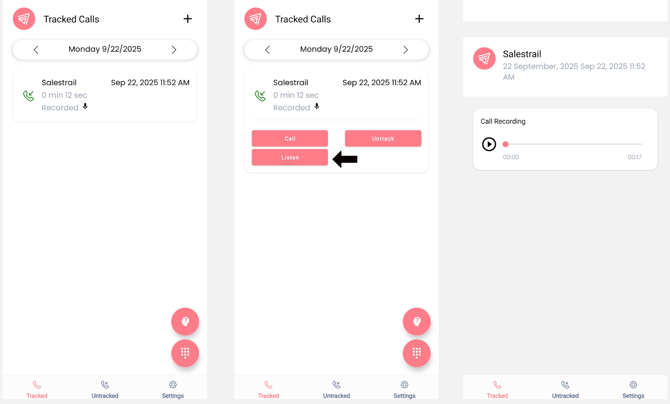
- The call appears in the Tracked Calls tab in the Salestrail app
- A recording icon is shown next to the call
- The recording appears in the Recordings tab in the dashboard
Below is a picture of recorded calls. Click on the call for more options.
TIP: To ensure that calls are recorded without fail, both Salestrail app and Salestrail recorder app should be running in the background. Remove all battery restrictions and optimizations on your device to keep both apps from being put to sleep.