
On Android
Check 1: Is the correct app installed?
Make sure you have installed Salestrail - Call log & analysis from Google Play. Search for it in the Play Store to confirm. The Salestrail Recorder APK is a different app used only for recording — it cannot track calls on its own.
Check 2: Are all permissions granted?
Open the Salestrail app. If any permissions are missing, the app will show a notification at the top of the screen telling you what needs to be granted. Tap it and allow everything requested.
You can also check manually: go to Phone Settings > Apps > Salestrail > Permissions and confirm that Phone, Call Logs, and Contacts are all set to Allow.
Without these three permissions, the app cannot detect or log any calls.
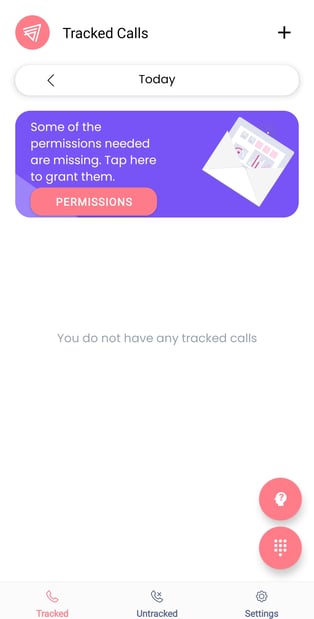
Check 3: Is battery optimization disabled?
This is the most common cause of calls not being logged on Android. Android closes background apps to save power — if Salestrail is being optimized, it cannot activate when a call starts.
Go to Phone Settings > Apps > Salestrail > Battery and check that it is set to Unrestricted. Also make sure Remove Permissions if App is Unused is turned off.
If you are not sure how to find these settings on your specific device, go to the Devices Battery Settings section and find your device brand for step-by-step instructions. Samsung, Xiaomi, Huawei, and OPPO in particular have additional battery management layers that need to be adjusted beyond the standard toggle.
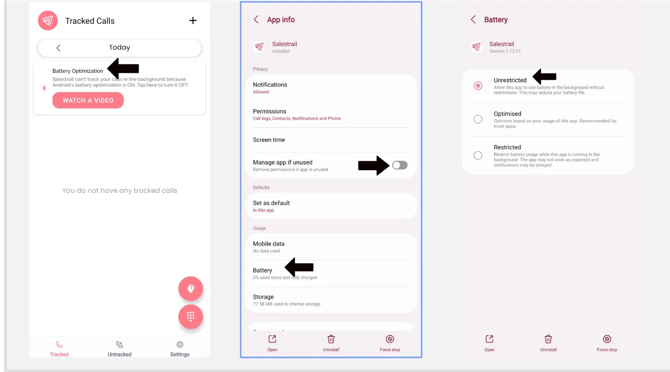
Salestrail needs to be set as "not restricted", "unrestricted", "do not optimize" or as "allow app to run in the background".
Some devices offer the option to designate an apps as a 'never sleeping app,' allowing it to run continuously in the background without interruption. Use this setting if it is available on your device. See the required settings for your device here.
Check 4. App Paused Due to Android Background Limits
Even though you have given the app permissions to stay on in the background, Android might anyway close you app to save battery. Android 14 and newer versions limit how long apps can run in the background. Most apps, including Salestrail, are allowed to stay active for only about six to eight hours before Android pauses them. This change is intended to save battery and improve performance, but it also means Salestrail cannot stay active indefinitely.
When Salestrail is paused by Android, call logging will stop until the app is reopened.
What do I need to do?
To keep call logging active open the app every now and then. Salestrail will also tell you if your app has been paused by sending you a notification:
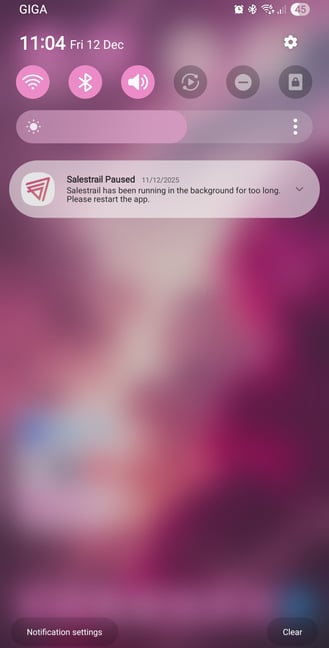
Tap the notification or open the app manually. This restarts the background timer for another six to eight hours.
Check 5: Is a SIM card selected?
Open the Salestrail app and go to Settings > Call Tracking > Track SIM Cards. Make sure at least one SIM is selected. If no SIM is selected, no calls will be tracked regardless of any other settings.
Check 6: Are office hours configured?
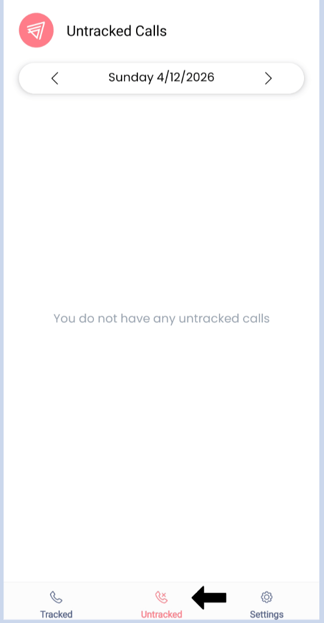
Go to Settings > Work Days & Office Hours. If office hours are set and you are making calls outside of those hours, those calls will not be tracked. They will appear in the Untracked tab in the app instead.
Either adjust your office hours to cover the times you are calling, or clear the setting entirely if you want all calls tracked regardless of time.
Check 7: Are you in the right organisation?
If you signed up independently rather than using your team's invite link, you may have created your own separate organisation. Your calls are being logged — just not to the organisation your manager is looking at.
Check by logging in to the Call Analytics Dashboard and looking at the organisation name in the top left. If it doesn't match your team's organisation, see the Wrong Organisation section in Common Setup Mistakes for how to fix it.
Check 8: Is TrueCaller set as your default dialler?
Salestrail is not compatible with TrueCaller. If TrueCaller is set as your default dialler, calls may not be detected correctly. Go to Phone Settings > Default Apps > Phone App and set your phone's native dialler as the default.
After working through the checks above
Make a test call and wait for it to appear. Give it a minute — there can occasionally be a short delay when syncing over mobile data.
If calls are still not appearing, check the User Management page in the Call Analytics Dashboard. Find your account and look at the status indicators:
- App installed — confirms the app is installed and connected to the dashboard
- Permissions — a red dot means one or more permissions are still missing
If both show green but calls are still not logging, contact support@liid.com
On iPhone
On iOS, Salestrail can only log calls made from within the app.