
If you are trying to enable accessibility for the Salestrail Recorder APK but the toggle appears greyed out or tapping it does nothing, this is caused by Android's restricted settings feature on newer devices.
It is not a problem with the app — it is a security measure built into Android 13, 14, and 15 that requires an extra step to unlock.
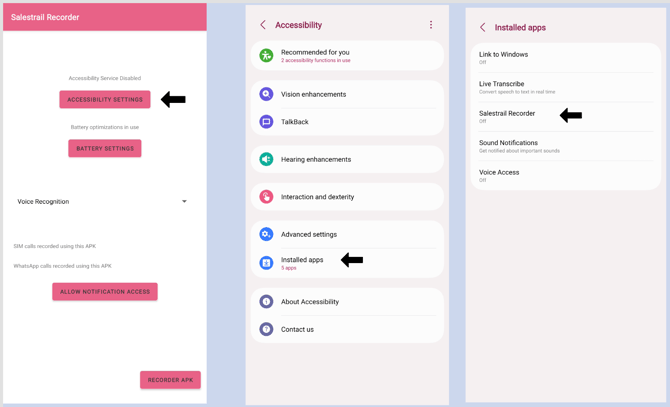
How to fix it
- Go to the accessibility settings screen and tap on Salestrail Recorder anyway — even though it appears greyed out. On some devices you will see a prompt, tap OK.
- Go to Phone Settings > Apps > Salestrail Recorder
- Tap the three dots in the top right corner. On some devices — such as Redmi — scroll to the bottom of the app info page instead.
- Tap Allow Restricted Settings
- Return to the Recorder APK, tap Accessibility Settings, and enable the toggle for Salestrail Recorder — it should now be active
Why does this happen?
Android 13 introduced stricter controls on apps installed outside the Play Store. Because the Salestrail Recorder is an APK — installed outside the Play Store — Android applies an additional layer of restrictions to it. Allowing restricted settings tells Android that you trust this app and want to grant it the permissions it needs.
This is a one-time step. Once restricted settings are allowed, you will not need to do it again unless you reinstall the app.
If the toggle is still greyed out after following these steps
Contact support@liid.com with your device make and model and your Android version.