
If you are trying to play recordings in HubSpot
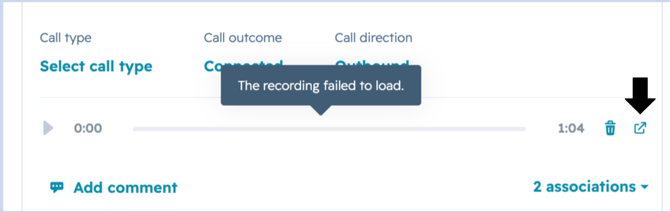
Recordings pushed to HubSpot become unplayable if the recording is modified after it has been synced. This is a HubSpot limitation.
To access the recording, click the recording link or URL icon in the HubSpot call activity — this opens the recording directly in the Salestrail dashboard where it will play correctly.
If recordings are not playing in the Salestrail dashboard
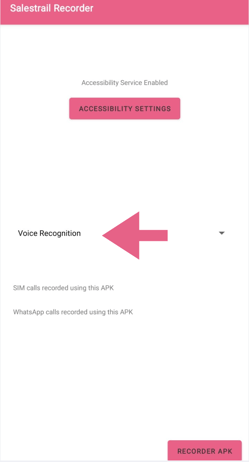
Check 1: Check the Source on your Salestrail recorder apk. Make sure you have selected Voice Recognition on the Salestrail recorder. The wrong source may result in blank audio files.
Check 2: Is your internet connection stable? Recordings are streamed from Salestrail's servers. A poor connection can prevent playback. Try refreshing the page or switching to a stronger connection.
Check 3: Is the recording file complete? If the Salestrail Recorder APK was closed by battery optimization mid-call, the recording file may have been created but not completed. Check battery settings for both the main Salestrail app and the Recorder APK and make sure both are set to Unrestricted.
Check 4: Is there actually audio in the recording? If the recording plays but there is no sound, see Recordings Appear But There Is No Audio for a full diagnosis guide.
If the issue persists
Contact support@liid.com with the date and time of a specific recording that is not playing and the device make and model of the user it belongs to.