
If your company uses Odoo CRM, you, as the Owner of your organisation, can enable the integration feature. Sign up to Salestrail and navigate to the Integrations section on your dashboard.
This document explains how you can connect Salestrail with Odoo,
generate the required Odoo API key, select the correct Odoo integration
version, verify the integration, and troubleshoot common connection
problems.
1. INTEGRATION OVERVIEW
The Salestrail–Odoo integration sends call information from Salestrail
to Odoo CRM. The integration allows call activity to be associated with
the relevant CRM record and stores the call information in Odoo.
Salestrail supports two Odoo integration options in the dashboard:
Odoo
Current Odoo integration.
Uses the current Odoo API implementation.
Intended for the current Odoo versions supported by Salestrail.
Odoo (Legacy)
Legacy Odoo integration.
Used for self-hosted Odoo 18.x or earlier.
Uses the legacy XML-RPC API.
The customer should select the integration that matches their Odoo version.
2. PREREQUISITES
Before connecting Odoo to Salestrail, the customer should have:
- An active Odoo database.
- An Odoo user account that Salestrail can use for the integration.
- An Odoo API key generated for that user.
- Sufficient permissions for the Odoo user to access the required CRM/contact data and create or update call activities.
- The correct Salestrail Odoo integration selected according to the customer's Odoo version.
3. SELECT THE CORRECT ODOO INTEGRATION
Salestrail provides separate dashboard selections for the current Odoo
integration and the Legacy integration.
In Salestrail → Integrations:
- Select "Odoo" for the current Odoo integration.
- Select "Odoo (Legacy)" for self-hosted Odoo 18.x or earlier.
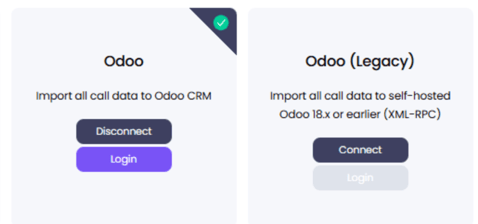
This selection is important because the two integrations use different
Odoo API implementations.
For Odoo 19, Odoo introduced the External JSON-2 API. The Legacy
integration uses the older XML-RPC API for supported older Odoo versions.
Version handling in Salestrail
The selected Odoo version is stored as part of the integration
authentication information.
In the backend, the Odoo authentication model contains a version field.
The Odoo integration uses this field to determine which API
implementation should be used for the customer's connection.
This allows the same Salestrail Odoo integration backend to handle both
the current and Legacy Odoo integrations while keeping the version
selection explicit in the authentication data.
Flow:
Salestrail dashboard selection
↓
Odoo / Odoo (Legacy)
↓
Odoo version stored in authentication
↓
Backend selects the corresponding Odoo API implementation
4. FIND THE ODOO DATABASE
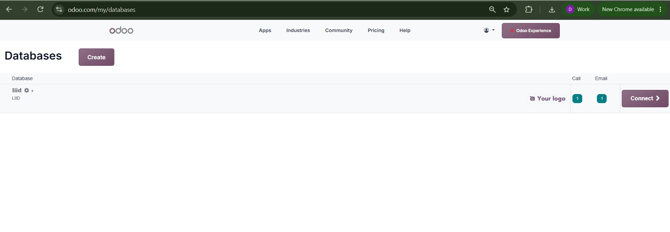
When using Odoo Online, open the Odoo database manager associated with
the account.
The database manager displays the database name and provides a Connect action.
For Salestrail setup:
- Use the actual Odoo instance/domain.
- Use the Odoo database used by the customer.
- Do not use an unrelated website/custom domain if it redirects to another Odoo host.
5. GENERATE AN ODOO API KEY
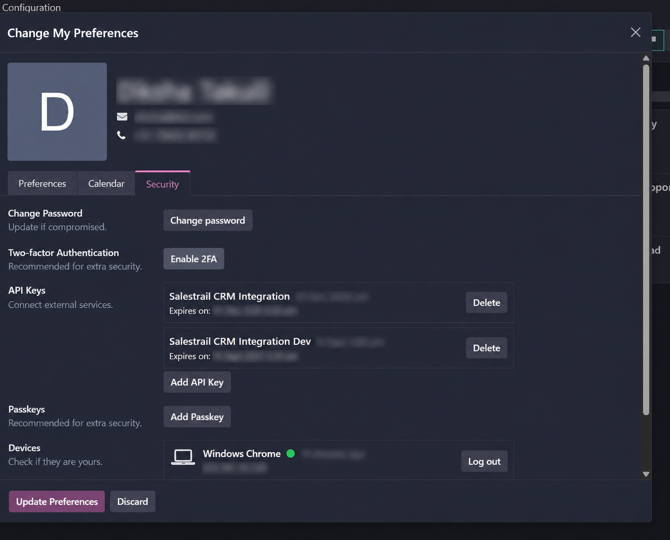
Salestrail uses an Odoo API key rather than the user's normal Odoo
password for the current integration.
Steps:
1. Log in to Odoo.
2. Open the user profile/preferences area.
3. Open Account Security / Security.
4. Locate API Keys.
5. Create a new API key for the Salestrail integration.
6. Copy the key immediately and store it securely.
The API key value is displayed only once during creation and cannot be
retrieved later. If the key is lost or compromised, generate a
replacement and revoke the old key.
Odoo also documents that API keys have expiration dates and recommends
using dedicated keys for integrations.
6. CONNECT ODOO IN SALESTRAIL
In Salestrail:
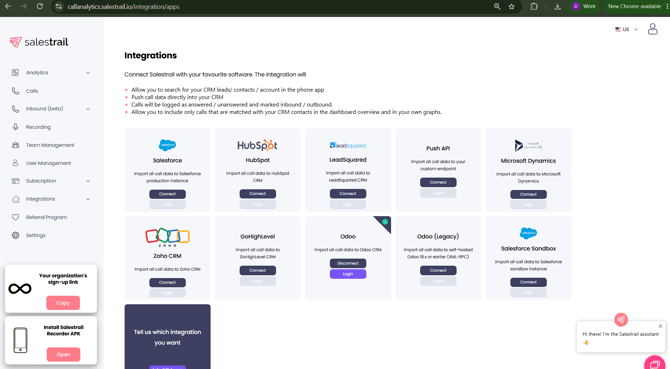
1. Go to Salestrail → Integrations.
2. Locate the appropriate Odoo integration:
- Odoo, or
- Odoo (Legacy).
3. Click Connect.
4. Enter the Odoo portal/instance domain.
5. Enter the Odoo database name.
6. Enter the Odoo email/username.
7. Enter the generated Odoo API key.
8. Submit the connection.
Important:
- Do not enter the normal Odoo password in the API key field.
- Use the API key generated under the Odoo user's security settings.
- Make sure the database belongs to the Odoo instance entered as the portal/domain.
- Select the correct Odoo integration before connecting so that the selected version is stored correctly in the authentication details.
7. COMPLETE INDIVIDUAL USER LOGIN
The organisation-level Odoo integration is connected by the Owner or
organisation administrator.
After the integration has been connected, each team member must
complete a one-time login from their own Salestrail account.
Team members should:
1. Log in to the Salestrail dashboard.
2. Go to Integrations → Apps.
3. Locate the Odoo integration.
4. Click Login.
5. Authenticate with their own Odoo account.
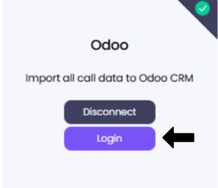
This step links the individual Salestrail user with their Odoo user.
8. WHAT HAPPENS AFTER CONNECTION
After the connection is established:
- Salestrail stores the Odoo authentication details together with the selected version.
- Salestrail authenticates requests using the configured Odoo credentials/API key.
- The backend uses the stored Odoo version to determine the appropriate API implementation.
- Salestrail can search Odoo CRM/contact data when required by the integration.
- Salestrail creates or updates call activities in Odoo CRM.
- The resulting call information can be viewed on the relevant Odoo CRM record.
9. AUTHENTICATION AND API MODEL
CURRENT ODOO / JSON-2
Odoo 19 introduced the External JSON-2 API.
The current Salestrail Odoo integration uses the JSON-2 API for the
Odoo versions supported by the current implementation.
A JSON-2 request uses:
- HTTP POST
- /json/2/<model>/<method>
- Authorization: bearer <API_KEY>
- Content-Type: application/json
- X-Odoo-Database: <DATABASE> when required by the Odoo deployment
Example:
POST https://<odoo-domain>/json/2/<model>/<method>
Authorization: bearer <API_KEY>
X-Odoo-Database: <DATABASE>
Content-Type: application/json
Odoo documents X-Odoo-Database as optional. It is required when a
single Odoo server hosts multiple databases and the host/domain alone
is not sufficient to identify the database.
LEGACY / XML-RPC
The Salestrail Integrations page labels the Legacy option for
self-hosted Odoo 18.x or earlier as XML-RPC.
The Legacy integration uses the XML-RPC API rather than the current
JSON-2 API.
10. ODOO VERSION COMPATIBILITY
Salestrail exposes the version choice directly in the dashboard through
separate integration options.
Current Odoo
- Salestrail option: Odoo
- API family: JSON-2
- Use for Odoo versions supported by the current Salestrail implementation.
Legacy Odoo
- Salestrail option: Odoo (Legacy)
- API family: XML-RPC
- Use for self-hosted Odoo 18.x or earlier.
The selected version is stored in the authentication record and is used
by the backend when making Odoo API requests.
11. HOW TO CHECK AN ODOO VERSION
For Odoo 19 and later, Odoo documents the /web/version endpoint for
checking version information.
Example:
GET https://<odoo-domain>/web/version
Example response:
{
"version_info": [19, 0, 0, "final", 0, ""],
"version": "19.0"
}
Odoo Online can also expose version strings such as:
"saas~19.3+e"
The version should be interpreted from the returned version information
rather than assuming that the version string always starts with a
specific value.
For older Odoo RPC integrations, Odoo also documents version
information through the RPC common service.
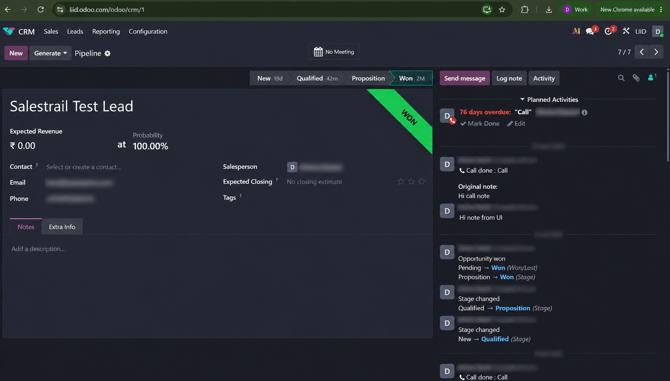
12. VERIFY THE CALL IN ODOO CRM
After a call has been processed by the integration:
1. Open Odoo CRM.
2. Open the relevant lead, opportunity, or contact.
3. Check the activity/chatter area.
4. Verify that the Salestrail call appears.
5. Check that the call information is correct.
13. TROUBLESHOOTING
A. Login returns an HTML / unexpected content-type error
If Salestrail expects a JSON API response but receives HTML, first
verify that the portal/domain is the actual Odoo instance URL.
A customer may have a custom website domain that redirects to an Odoo
host. The website domain should not automatically be assumed to be the
correct Odoo API endpoint.
Check:
- Odoo instance URL
- Redirect destination
- Database name
- Selected Salestrail Odoo integration
- Odoo version
- Version stored in the authentication details
B. Certificate / hostname mismatch
If the error reports something similar to:
"No subject alternative DNS name matching <hostname> found"
verify the hostname being used.
The hostname must match the certificate presented by the Odoo server.
If the customer has a custom website domain, check whether the actual
Odoo instance uses a different hostname.
C. Authentication fails
Check:
- API key is correct.
- API key has not expired.
- API key has not been revoked.
- Correct Odoo user is being used.
- Odoo user has the required permissions.
- Correct database is being used.
- Correct Salestrail Odoo integration is selected.
- The version stored in the authentication record matches the selected Odoo integration.
14. List of modules and permissions required in Odoo for the integration.
Contacts
res.partner- Required: Read
Activities
mail.activitymail.message- Required:
- Activity: Create
- Message: Read + Write
- Message: Delete
Attachments
ir.attachment- Required: Create
Users
res.users- Required: Read
Technical model metadata
ir.model- Required: Read