
How it works
When a call ends, Salestrail looks up the phone number in your CRM and logs the call as an activity against the matching record. The whole process is automatic and typically completes within a minute of the call ending.
Calls are matched to CRM records in this priority order: Contact > Lead > Account. If two records of the same type share a number, the one with the most recent activity is used. All field mapping and logging behaviour is fully customisable — if the defaults don't fit your workflow, contact support@liid.com and we'll configure it for your account.
What Salestrail logs to your CRM
For each call, Salestrail logs:
- Direction — inbound or outbound
- Outcome — answered or unanswered
- Duration
- Date and time
- The contact, lead, or account the call is matched to
- Notes added in the Salestrail app
- A link to the call recording (if recording is enabled) or the full recording if you prefer this
All of the above can be mapped to different fields, and additional data points can be added. Contact support@liid.com with your specific requirements.
Supported CRMs
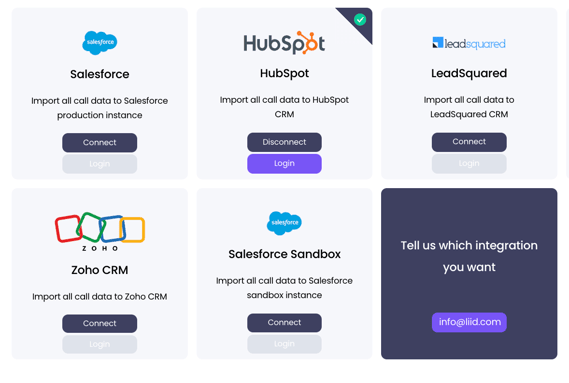
Salestrail has ready-made integrations for the most commonly used CRMs, but can connect to any CRM that supports webhooks or an API.
Ready-made integrations:
- Salesforce and Salesforce sandbox
- HubSpot
- LeadSquared
- Zoho
- Microsoft Dynamics
- GoHighlevel
Everything else: If your CRM isn't on this list, you can connect it using the Push API (webhook) or Pull API. If you have a development team, they can build the connection using our API documentation. If not, contact support@liid.com and we'll discuss options.
Before you connect
A few things to check before setting up:
- Only the Owner of the Salestrail organisation can connect the integration. If you're not the Owner, ask whoever set up your Salestrail account to do this step.
- Make sure your CRM account has API access enabled. Without this, Salestrail cannot connect. This is particularly relevant for Salesforce, where API access is controlled at the profile level.
- CRM integration is an add-on feature. Check that it is included in your Salestrail subscription before you start. If you're unsure, check Dashboard > Subscription or contact support@liid.com.
Connecting your CRM
- Log in to the Call Analytics Dashboard at callanalytics.salestrail.io/signin
- Go to Integrations > Apps
- Find your CRM and click Connect
- Log in with your CRM credentials when prompted
- Once connected, your team will receive an email notification
Important: Connecting the integration as the Owner is not enough on its own. Every team member also needs to complete a one-time login step to link their individual account to the CRM. They do this by going to Integrations > Apps > Login in the dashboard and authenticating with their own CRM credentials. Calls will not sync for users who have not completed this step.
Checking whether calls are being logged
Once connected, go to Dashboard > Integrations > Integration Log to see the status of every call.
- Green dot — successfully logged to your CRM
- Red dot — failed to log. Hover over the dot to see the reason.
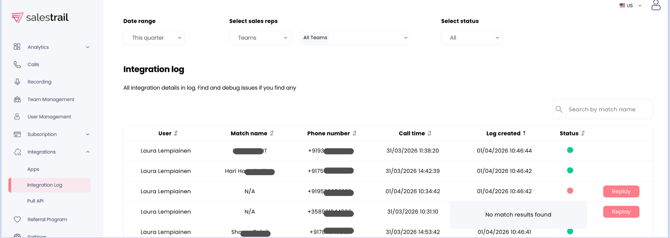
The most common reason for a failed log is that the phone number doesn't exist in your CRM. If this happens:
- Add the contact with the correct phone number to your CRM
- Go back to the Integration Log
- Click Replay next to the failed call
Salestrail will attempt to match and log it again.
If a call isn't logging where you expect
By default, Salestrail logs calls to contacts, leads, and accounts. If you need calls logged to a specific deal, opportunity, or custom object, this requires additional configuration. Contact support@liid.com with your requirements and we'll set it up for your account.