
If your company uses Microsoft Dynamics, you as the Owner of your organisation, can enable the Microsoft Dynamics integration option so that all of your sales team's calls will be logged directly to Microsoft Dynamics. All you need to do is follow these steps:
Step 1: Sign up on the Call Analytics dashboard and create your organisation if you haven't already.
Step 2: Go to Integration > Apps.
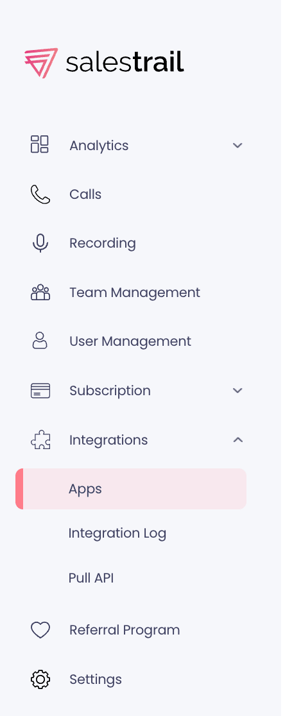
Step 3: Go ahead and connect.
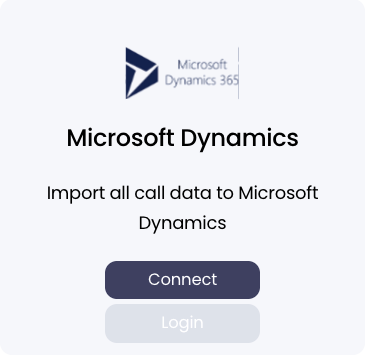
Now, your organisation is connected to Microsoft Dynamics.
For each user to connect Salestrail with Dynamics, an administrator must first grant consent in Microsoft Entra ID (formerly Azure Active Directory). This is required by Microsoft to allow external applications to access Dynamics 365 securely.
Once the administrator has given consent:
-
The application will appear as approved in your environment
-
Each user will be able to connect their own Salestrail account to Dynamics
-
Calls will be assigned correctly to the user who made them, instead of to the admin
If an admin account is used during authentication, all calls will be logged under that admin. After the administrator approves the app and each user completes their own connection, this will resolve automatically.
Step 4: You and your team members need to open the Call Analytics dashboard and either click the link shown in the notification or go to Integrations > App > Login. From there, sign in using your Microsoft Dynamics credentials to complete the connection.